Kip the Cat Bedtime Clock

Right then. Let's get Kip working.

Five minutes to set up, then you can mostly forget about it. The written steps are below, and the leaflet in the box says the same thing if you'd rather have it beside you.

Setting it up

Five steps to the first night

To change a setting, use + or −, then press SET to move to the next step.

Charge and switch on

Give it a full charge before the first night.

Press Power

  1. Plug the USB-C cable into the back of the clock.
  2. Red means charging, green means full. It takes two to three hours.
  3. Press Power to turn it on.

If the battery is low, the backlight stays off until it’s charged.

Set the time

The time and the day of the week.

Hold Time · 2 sec

  1. Choose a 12 or 24-hour clock with + or −, then SET.
  2. Set the day of the week, then SET. Monday shows as “d:01”.
  3. Set the hours, SET, then the minutes, SET.

Get the day right. Weekend mode depends on it.

Set bedtime

One setting covers the whole night: when sleep starts and when it’s okay to get up.

Hold Bedtime · 2 sec

  1. Set the sleep time: hours, SET, minutes, SET.
  2. Set the wake time: hours, SET, minutes, SET.
  3. Turn the morning alarm on or off with + or −, then SET.

Leave the alarm off for sleep training and let the colour do the work. To start bedtime early one night, hold Bedtime for 5 seconds.

Pick a screen

Three layouts to choose from.

Tap Display

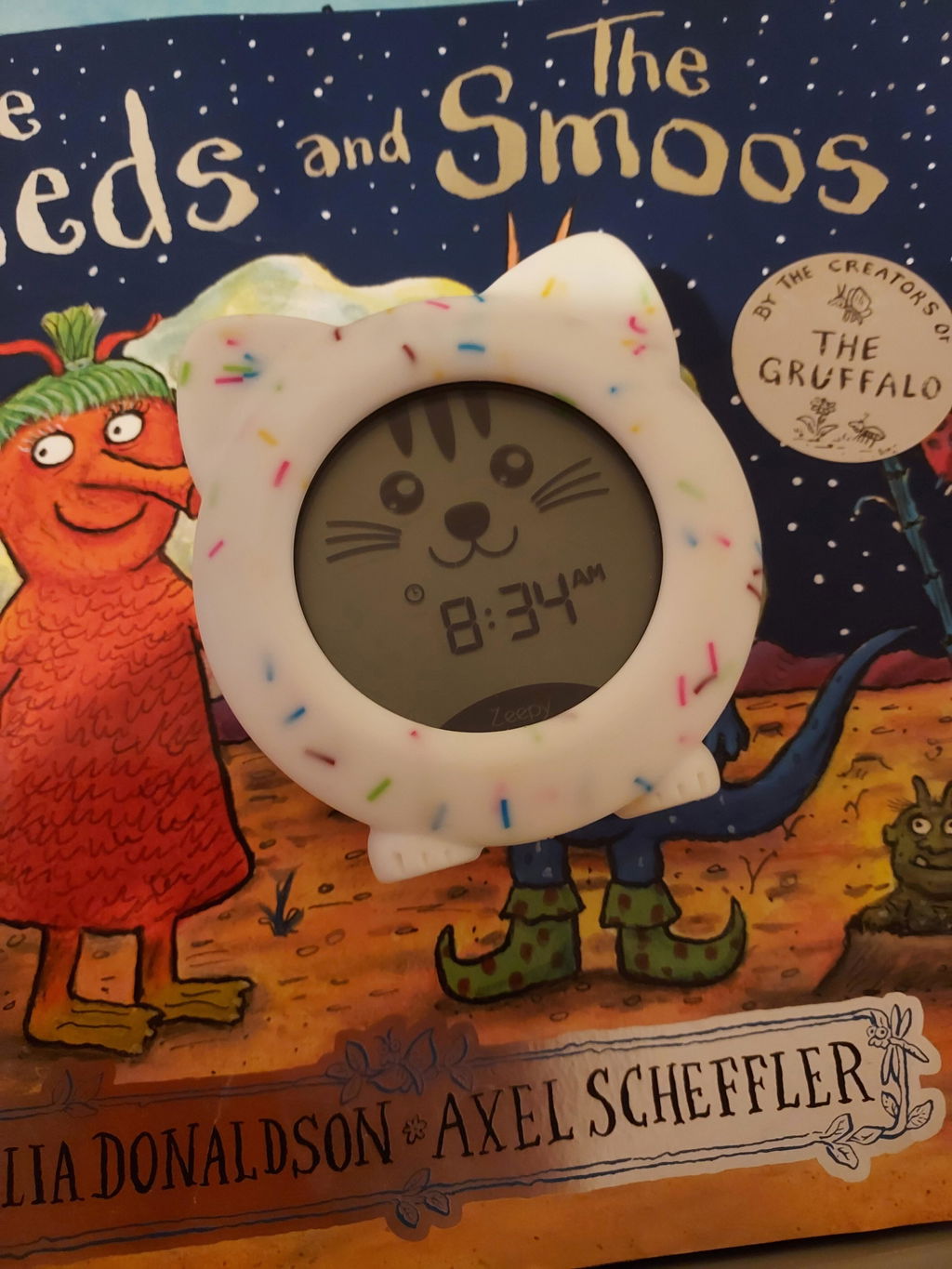
  1. Kip’s face and the time. Suits most children.
  2. The time on its own, for older children.
  3. Kip’s face on its own, for younger children.

Tap, don’t hold. Holding Display opens the phase timers.

Lock it

Do this on night one, before small hands find the buttons.

Hold + and − · 5 sec

  1. Hold + and − together for 5 seconds.
  2. A padlock appears on the screen.

The same 5-second hold unlocks it when you need to change something.

While it's in your hands

Register your Zeepy

That's the setup done. Everything below is worth knowing, but none of it is required, starting with twenty seconds that gets you a free two-year guarantee.

Two-year guarantee

Free, for registering. Covers manufacturing faults — and once you're registered you'll never need to find the receipt.

A free month of the app

Tick the box below to join our emails and we'll send you a code for your first month of the full library free.

Advice that fits

Tell us your child's age and we'll send the sleep guidance for that age, and nothing else.

Free bedtime chart when you join

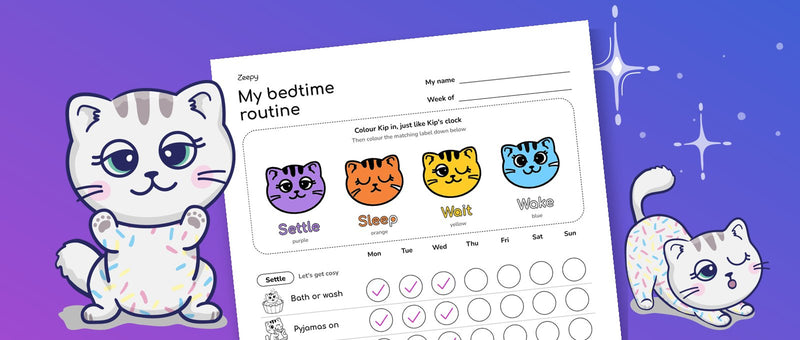
Tick the box and you can download our colour-in bedtime routine chart straight away: a chart your child colours in and ticks off each night, a page for you and a certificate for the end.

Registering means we'll email you your guarantee record.

About the two-year guarantee

Register your Zeepy and it's covered against manufacturing faults for two years from the day it was bought. We'll repair it or replace it — whichever makes more sense — free of charge.

Once you've registered, that's your proof. We'll have the date and the details on file, so you won't need to dig out a receipt to make a claim. Handy if your Zeepy was a gift — the guarantee travels with the clock rather than with whoever paid for it.

It doesn't cover accidental damage, water damage, normal wear, damage from a charger other than a 5V one, or a clock that's been taken apart. Rechargeable batteries lose some capacity over time, which is normal and isn't a fault.

This guarantee is in addition to your legal rights, and doesn't affect them. If you bought your Zeepy from a shop, Amazon or TikTok Shop, your rights under the Consumer Rights Act 2015 are against them — and you can still come to us under this guarantee, whoever you bought from.

Guarantee provided by Zeepy Ltd, 4th Floor, Silverstream House, 45 Fitzroy Street, London W1T 6EB. Valid in the United Kingdom.

Full guarantee terms

What we do with what you give us

Your email — to confirm your registration, hold your guarantee record, send your app code if you asked for one, and contact you if you ever make a claim. We keep it for as long as your guarantee runs, plus one year.

Where and when you got it — so we know how to help if you need to claim. Kept with your registration.

Your child's age — only if you give it, and only to decide which sleep advice to send. We ask for an age range rather than a birthday on purpose, because a range is all we need. Not shared with anyone.

You can ask to see what we hold, correct it, or have it deleted whenever you like — email dreamteam@zeepy.co. If you're not happy with how we've handled it, you can complain to the Information Commissioner's Office at ico.org.uk.

Zeepy Ltd, 4th Floor, Silverstream House, 45 Fitzroy Street, London W1T 6EB, is responsible for your data.

Full privacy notice

What the colours mean

Four colours, in the same order, every night

The colours matter less than the order. It's the sameness that does the work. Each colour fades into the next and Kip's face changes with it, so there's nothing to remember once bedtime and wake time are set.

Settle

Settle

Wind down. Let's get cosy and ready for bed. Starts 30 minutes before bedtime: pyjamas, quiet time, a story.

Sleep

Sleep

Time to sleep. Stay in bed and close your eyes. Lasts all night, and Kip's eyes are shut too.

Wait

Wait

It's nearly morning. Rest quietly until the light turns blue. The last 15 minutes before wake time.

Wake

Wake

Good morning! It's okay to get up now. The blue light stays on for an hour, then turns off to save battery.

Demo mode

Show them what each colour means

Do this together, in daylight, before the next bedtime. Make sure the buttons are unlocked and Kip has enough charge to light up.

Start the demo

Make sure the buttons are unlocked and Kip has some charge.

Hold SET · 5 sec

  1. Hold SET for 5 seconds.
  2. The screen shows “dE:n0”.

Go through each colour

Talk about each colour as it comes up.

Tap SET

  1. Purple: Settle.
  2. Orange: Sleep.
  3. Yellow: Wait.
  4. Blue: Wake.

Set the brightness

While a colour is showing, you can set how bright it is.

Tap + or −

  1. Press + or − to make that colour brighter or dimmer.
  2. Kip remembers the brightness for each phase.

Once all four have been shown, the demo goes back to the normal time.

Explaining it to your child

Worth saying once, in daylight

Roughly these words, at four in the afternoon rather than half past seven.

When the clock is purple, it's time to put on pyjamas and have quiet time or bedtime stories. When it turns orange and the cat is asleep, that means you close your eyes too. When it turns blue and the cat is awake, it's okay to get out of bed and come for cuddles. But if you wake up and Kip is yellow, stay in bed until both eyes open and it turns blue.

Making it stick

Three things that decide whether it works

Move the time in small steps

If your child wakes at 5:30 am, setting wake time to 7:00 am on night one just teaches them the clock is wrong. Start at the time they already wake, so the first morning the clock agrees with them and they get it right. Then move it later a little at a time. Shift Time, below, can do the moving for you.

Make a fuss of the mornings that work

Every morning they stay in bed until blue, sing their praises. Hugs, high-fives, and a sticker chart if that's part of your routine. The clock gives them the signal; the praise is what makes them care about it.

And when they wake up early anyway

Remind them it's still quiet time, keep your response boring and the same every time, and put them back. Consistency is doing more work here than anything the clock does.

When the week changes

Naps, weekends and clock changes

None of these are needed for the first night. They’re for naptime, weekend lie-ins and the two weekends a year the clocks go forward or back.

Nap mode

A separate nap routine that leaves bedtime alone.

Hold Nap · 2 sec

  1. Turn Nap on with + or −, then press SET.
  2. Set the nap time: hours, SET, minutes, SET.
  3. Choose the length: 30, 45, 60 or 90 minutes, then SET.
  4. Turn the alarm on or off, then SET.

To start a nap straight away, hold Nap for 5 seconds.

Weekend mode

A slightly later bedtime and wake-up at the weekend, then back to normal on Monday morning.

Hold Time · 5 sec

  1. Scroll to “W:5d” and press SET. The calendar icon flashes.
  2. Use + or − to choose how much later: 15 to 60 minutes.
  3. Press SET. To turn it off, choose “OF”.

Runs from Friday bedtime to Sunday wake. If your days off are different, set the day of the week so they become days 6 and 7. It can’t run while Shift Time is on.

Shift Time

Moves the whole routine earlier or later over a few days, keeping the same amount of sleep. Made for the clock change, and handy for early risers.

Hold Time · 5 sec

  1. Scroll to “Sh:Ft” and press SET.
  2. + shifts later, − shifts earlier, by 15 to 60 minutes. Press SET.
  3. Choose how many days to spread it over, then SET.

Spring clock change: 60 minutes over 6 days moves it 10 minutes a day. To cancel, go back in and choose “m:0f” at the minutes step.

Advanced settings

Timers, brightness and battery

Most families set these once and leave them, or never touch them at all.

Phase timers

Change how long each colour lasts.

Hold Display · 2 sec

  1. Settle: off, or 10 to 60 minutes (30 to start with). Use + and −, then SET.
  2. Sleep: on all night, or 10 to 60 minutes. SET.
  3. Wait: off, or 5 to 30 minutes (15 to start with). SET.
  4. Wake: on, or 10 to 60 minutes (60 to start with). SET to finish.

Turn Settle and Wait off for a simple two-colour clock for younger children. “On” keeps the light on for the whole phase, which uses more battery.

Brightness

Most families end up dimmer than they expect, so start low.

Tap + or −

  1. Tap + or − to set the overall brightness from 1 to 10, or off (“b:0F”).
  2. For a different brightness on each colour, use demo mode: hold SET for 5 seconds, then + or − while each colour shows.

Charging and low battery

Kip keeps working while it charges.

USB-C · 5V 1A

  1. Red light means charging, green means full. It takes two to three hours.
  2. When the battery is low, the battery icon flashes and the backlight turns off to save power.
  3. Charge it soon after that.

Replacing the battery

Only ever with the official Zeepy replacement battery.

Screwdriver needed

  1. Take Kip out of its silicone jacket and unscrew the battery door. Needing a screwdriver is deliberate, for child safety.
  2. Unplug the old battery and connect the new one. The plug only fits one way.
  3. Refit the door and the jacket.

Replacement batteries from zeepy.co or dreamteam@zeepy.co.

Factory reset

Puts everything back to how it came out of the box.

Hold SET + Display + Power · 5 sec

  1. Hold SET, Display and Power together for 5 seconds.
  2. Set the time and bedtime again afterwards.

Button reference

What every button does

Button Tap Hold 2 sec Hold 5 sec
Time
TapShows the time, and whether Weekend or Shift is on.
Hold 2 secSet the clock.
Hold 5 secWeekend or Shift mode.
Bedtime
TapShows the sleep and wake times.
Hold 2 secSet bedtime.
Hold 5 secStart sleep now.
Nap
TapShows the nap start time and length.
Hold 2 secSet the nap.
Hold 5 secStart a nap now.
Display
TapChanges the screen layout.
Hold 2 secSet the phase timers.
Hold 5 sec–
SET
TapConfirms, or moves to the next step.
Hold 2 sec–
Hold 5 secDemo mode.
+ and −
TapBrightness, or changes a value.
Hold 2 sec–
Hold 5 secHold both to lock or unlock.
Power
TapOn or off.
Hold 2 sec–
Hold 5 secWith Display and SET: factory reset.

If something isn't right

The usual suspects

Nothing responds when I press the buttons.

The lock is on. Look for the padlock on the screen, then hold + and − together for five seconds to unlock.

The screen is blank.

The battery's flat. Plug it in with the USB-C cable; Kip works while it charges.

The screen works but there's no light.

Either the battery is low (the battery icon flashes and the backlight goes off first to save power), or the brightness is set to off. Press + a few times.

The colours are changing at the wrong time.

It's usually the clock's time or day rather than bedtime. Check step 2 first. Then tap Time to see whether Weekend mode or Shift Time is on. Kip doesn't change itself when the clocks go forward or back, but Shift Time can ease the change in over a few days.

The blue light went off in the morning.

That's meant to happen. Blue stays on for an hour after wake time, then turns off to save battery. You can change how long under phase timers.

My child ignores it.

Normal at first, and it isn't a fault. Go back to the colours in daylight with demo mode, and check the wake time isn't much later than they actually wake. Most of the learning happens away from bedtime. Six reasons a child ignores the clock, and what to try.

I've lost the cable.

Kip charges over USB-C. Email dreamteam@zeepy.co and we'll help you get a replacement.

Still stuck?

Email dreamteam@zeepy.co and a real person will answer.

The other half of bedtime

The clock shows them. The app tells them.

Kip shows them what they're meant to be doing; the Zeepy app helps them do it. A story for winding down, sounds for sleeping, something for the nearly-morning stretch, and a story worth waking up for.

Free to download. Your first month is free with a code from us.